


red750
-
Posts
8,152 -
Joined
-
Last visited
-
Days Won
73
Content Type
Profiles
Forums
Gallery
Downloads
Blogs
Events
Store
Aircraft
Resources
Tutorials
Articles
Classifieds
Movies
Books
Community Map
Quizzes
Videos Directory
Posts posted by red750
-
-
Here's one suggested by our winner, who is naturally excluded from this question.
There have been a number of variable geometry wing aircraft, the best known probably being the F-111. Name another that had a different type of movement, where were the wind tunnel tests conducted, and when did flight tests commence?
.
-
Dave C writes "I've no idea ... " fore and aft ? " ... is not a boat is it ?;)"
I was trying to be a little bit cryptic Dave. If I had said "Centre line thrust" I might as well have given the answer myself.
-
This was filmed in 1984 and may have been seen before. Note about 2:14, no seat belt.
https://www.youtube.com/watch?v=5NVT1VkBDWE
.
-
That's the one, mnewbery. At least two converted. Cessna 337 Super Skymaster --> SA-550.
http://en.wikipedia.org/wiki/Spectrum_SA-550
.
-
Hi Willie,
How about 'fore and aft'?
Peter.
-
The forums have been a bit quiet lately, and with weather not all that flying friendly, I thought it might be time for another quiz.
What twin engine piston aircraft was converted to a single engine turboprop?
.
-
Looks great. Fantastic images on the first link.
Peter.
-
Hi Geoff,
The owner of the photo can set permissions to allow or disable downloading. If you want a protected image you would have to contact the owner.
Peter
-
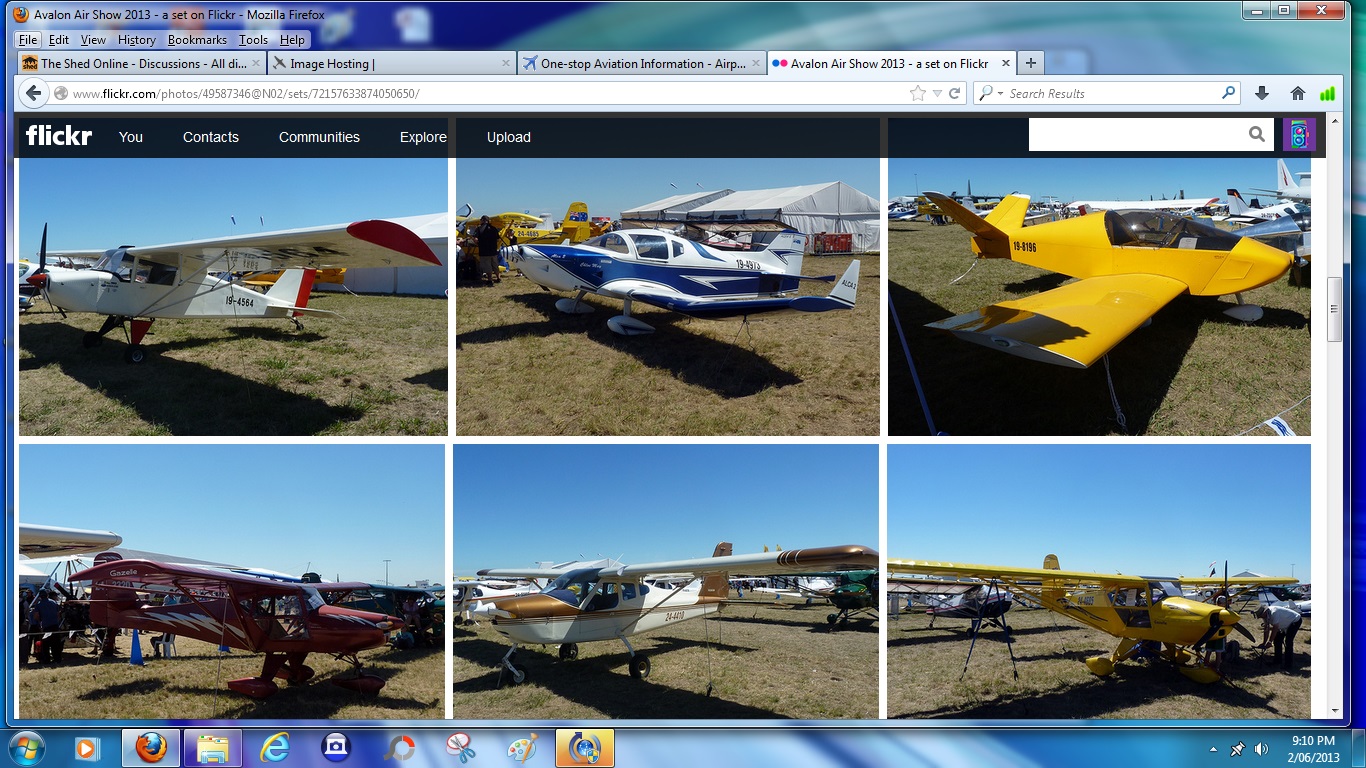
Added more photos, mainly from the Avalon Air Show, including a large number of RAAus types, bringing the overall total to 200.
[ATTACH=full]1792[/ATTACH]
.
[ATTACH]18409[/ATTACH]

-
Hi All,
A few of you have seen my aircraft images on the link in my signature below, but I have many other images on different subjects on flickr.com. I received an email from flickr advising that they have now allocated all members a space of 1 terabyte each for their photos, and they have updated the way the images are displayed. For those who have not seen the new format, check out my photostream on the link below. Most of the aircraft images you would have seen on airport-data.com, but there are some good car photos among others as well.
http://www.flickr.com/photos/49587346@N02/
.
-
The difficulty is that Microsoft stops supporting the older versions. Over the years, on various machines at work and at home, I've used XP, Vista, Windows 7, and now on my desktop, Windows 8. I've never really had any problems with them. There is a learning curve till you get used to them, probably the biggest with Windows 8, because it is moving towards tablets and touch screens. The biggest difficulty is that a lot of things are hidden, just like Snipping Tool, and another I have discovered called Problem Step Recorder or PSR. This records a screen grab every time you click the mouse while the recorder is running. Again, not available in XP as far as I know.
.
-
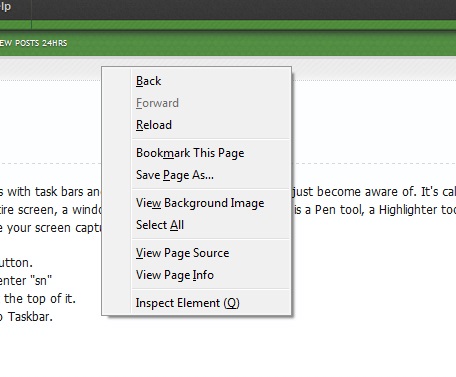
If you want to include a pop-up menu, such as the right-click menu, or drop box menu, you have to hold the CTRL button down. So CTRL+PrtSc gives you the menu over the underlying screen (see example). CTRL+Alt+PrtSc copies the menu only.
[ATTACH=full]1780[/ATTACH]
This only works with Geoff's method, it does not work with the Snipping Tool. When you click on the Snipping Tool icon, the menu disappears.
.
[ATTACH]18401[/ATTACH]
-
Denis,
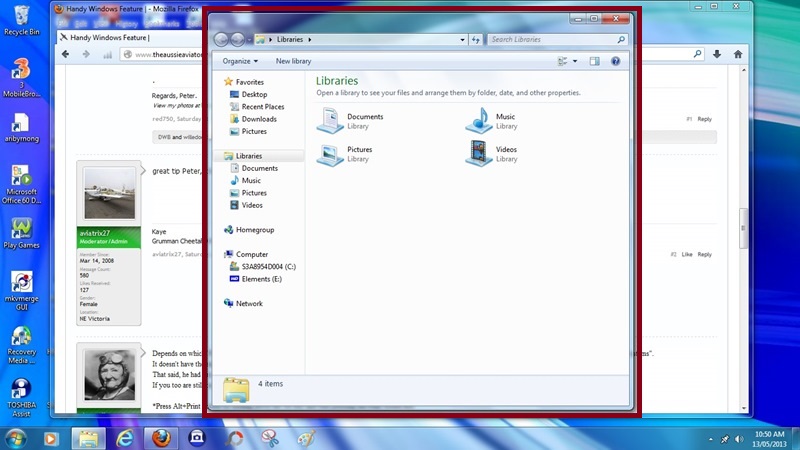
Print screen copies the whole screen. Alt+print screen copies the active window only. The attached image shows a full screen copy. Using Alt+PrtSc would only have copied the area in the red box.
[ATTACH=full]1779[/ATTACH]
.
[ATTACH]18400[/ATTACH]
-
I agree with you, Geoff, I still use the method you describe, and it has a few benefits over Snipping Tool. I'm not sure which versions of Windows has the tool. I know Windows 7 does (that is what is on my laptop), and I believe Vista does, too. When I get my desktop back from HP (warranty repair), I will be able to check out Windows 8. However, for simple screen grabs, or part screen, Snipping Tool has its value.
As for the other benefits? In Paint you can add lines, boxes, arrows, etc, but most importantly, text. See examples:
.
-
Here's a feature of versions of Windows with task bars and Start buttons, which I have only just become aware of. It's called the Snipping Tool and is a screen capture tool. It allows you to take a capture of the entire screen, a window, or any rectangular strip. There is a Pen tool, a Highlighter tool and an erase to delete any drawing or highlighting you may have done. You can then save your screen capture.
To locate the tool, Click on the Start button.
In the search box below All Programs, enter "sn"
A menu will open with Snipping Tool at the top of it.
Right-click on the item and select Pin to Taskbar.
This icon will appear on your taskbar.
[ATTACH=full]1778[/ATTACH]
Whenever you have something on the screen you wish to copy, click on this icon.
A translucent veil will cover the screen and a dialog box will allow you to select whole screen, window or rectangular strip. If the latter, you then click and drag the rectangle as required.
[ATTACH=full]1775[/ATTACH]
A couple of samples:
[ATTACH=full]1776[/ATTACH]
Moorabbin Airport Control Tower
[ATTACH=full]1777[/ATTACH]
Rectangular area showing Desktop and two windows.
.
[ATTACH]18399[/ATTACH]
-
A different sort of Airbus:
http://1000aircraftphotos.com/Contributions/HornDavid/10947.htm
And here's one I bet you never expected to see a twin engine version of:
http://1000aircraftphotos.com/Contributions/HornDavid/8788.htm
.
-
Deleted pending approval of copyright owner.
-
Here's a link to some very unusual aircraft
http://1000aircraftphotos.com/index.html
Worth browsing through.
.
-
And now a tribute to the other two V-Bombers. First, the Handley Page Victor (Keep an eye out for the landing U2):
.
-
-
Video of the Vulcan to the Sky Trust's Avro Vulcan XH558 making a number of passes. If you have external amplified speakers, the soundtrack offers terrific sounds of the Bristol Olympus engines. I saw a Vulcan fly at an airshow at Laverton (Vic) in the 60's. One of the loudest aircraft I have heard. The Raptor this year was also pretty noisy.
http://www.youtube.com/embed/nlRl5V7lgs4?feature=player_embedded
-
From the rego listing:
Amateur built JG2 Serial No 1, powered by GE T58-8F. First Registered 23 Nov 05. Owner/builder lives at Mt. Cotton Qld.
.
-
According to Channel 7 News, the crew did report the load moving.
.
-
Surely the aircraft could only get into the attitude prior to the stall due to cargo sliding to the rear in the takeoff.
http://www.optuszoo.com.au/tvandvideo/videos?movideo_m=329855
.


Time For Another Quiz
in Aviation Enthusiasts
Posted
Hi Willie,
Not to be difficult, but I worded it that way to allow you to interpret it. To be more specific may have made it too easy. Do you have a suggestion?
.